The interview period is the set of dates and times when your team is available for expert calls on a project. We share these times with experts to guide them to offer slots that suit you.
You can also mark some or all of your times as preferred, to show experts when you would most like calls to take place.
Where to find it
- Open your project in the client portal.
- Click Project settings.
- In the Interview period section, click Edit interview period.
How to set your interview period
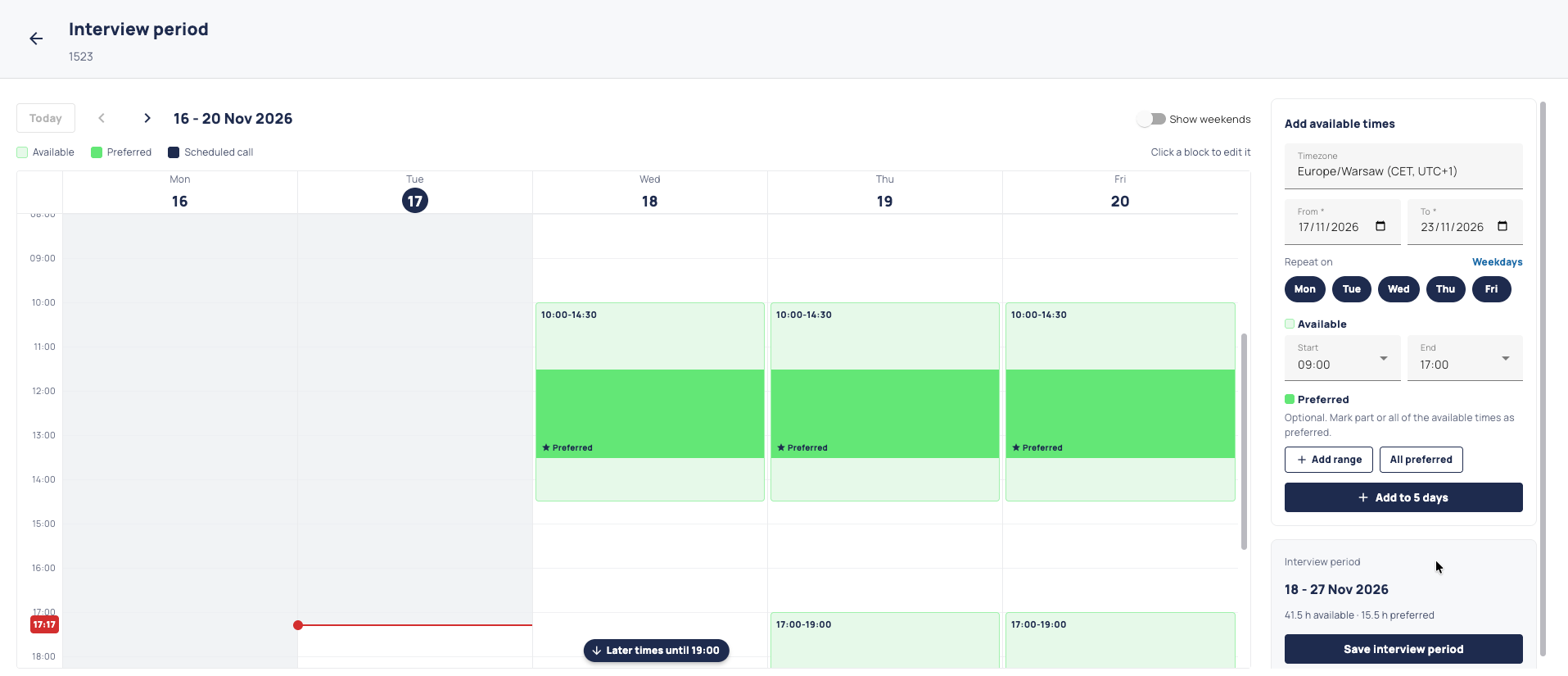
Add available times
- Check the timezone. It defaults to your preferred timezone.
- Choose a From and To date. Dates cannot be in the past or more than a year ahead.
- Under Repeat on, select the days of the week to include, or click Weekdays to select Monday to Friday.
- Under Available, choose a Start and End time.
- Optional: under Preferred, click Add range to mark part of that time as preferred, or click All preferred to mark all of it.
- Click Add time.
Times will be added to each selected day of the week between the from and to dates you've selected.
Edit or delete a time
- To edit, click a block on the calendar. In the Edit time window, change the times or preferred ranges and click Save.
- To delete, hover over a block and click the bin icon, or click Delete in the Edit time window.
Was this article helpful?
That’s Great!
Thank you for your feedback
Sorry! We couldn't be helpful
Thank you for your feedback
Feedback sent
We appreciate your effort and will try to fix the article